Troubleshooting TKMM-NX booting issues
Note
The warning Failed to open switchroot/joycon_mac.bin can be safely ignored.
This troubleshooting section only concerns booting issues, not setup or game dump issues.
Error: Board was not initialized properly! Hang prevented
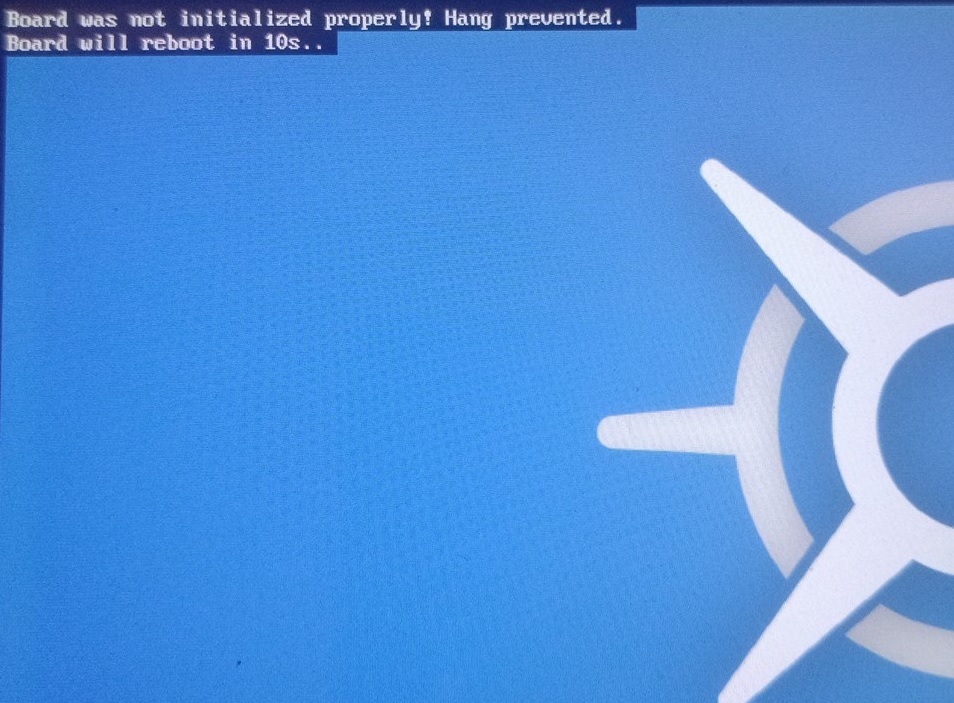
If you get this specific error, this is due to an outdated SDLoader firmware on your modchip.
Please follow these instructions to fix this specific error (this is only for modchips):
- download the latest hwfly firmware and extract it
- place the file called
hwfly_toolbox.binin your SD card's/bootloader/payloadsfolder - place the file called
sdloader.encat the root of your SD card - boot up your Switch to Hekate, press
Payloads, then presshwfly_toolbox.bin - press the volume down button 2 times then press the power button
- afterwards scroll down to the option called "power off" and press the power button
- now boot it up and you should be good to go!
Errors: wrong image format for bootm command or failed to launch kernel
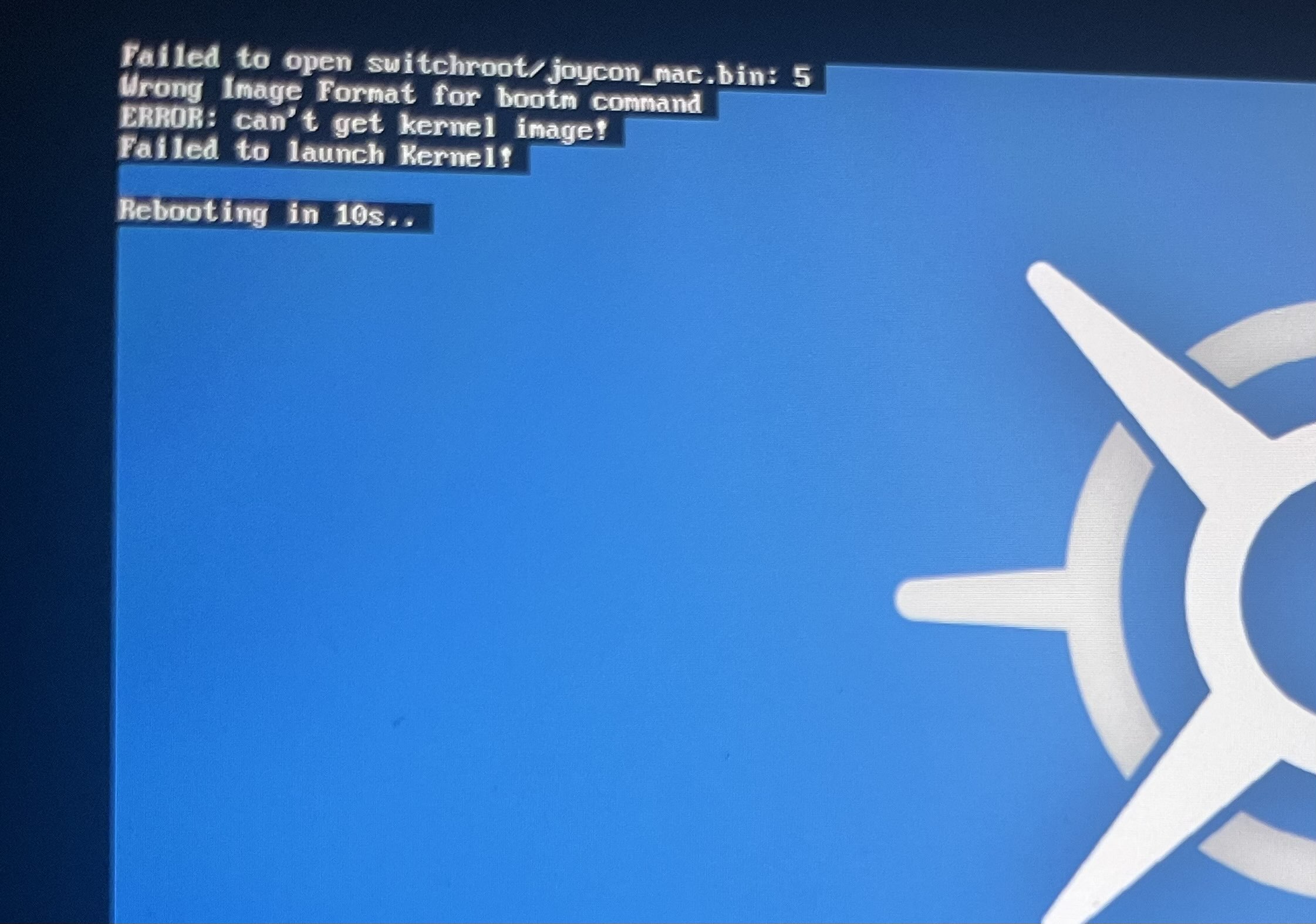
If you get these errors, there are several possible scenarios why this would occur:
- when files get corrupted if transferred with a bad USB cable, or faulty microSD adapter.
- when the file system of the SD card gets corrupted if not ejected properly.
- when the SD card is incompatible (check the compatibility guide link at the bottom of this page).
- when you did not fully extract all files from the
tkmm-nx.ziprelease.
Try either of the two methods below to fix boot errors related to SD card issues.
Method #1: Scanning and repairing the SD card
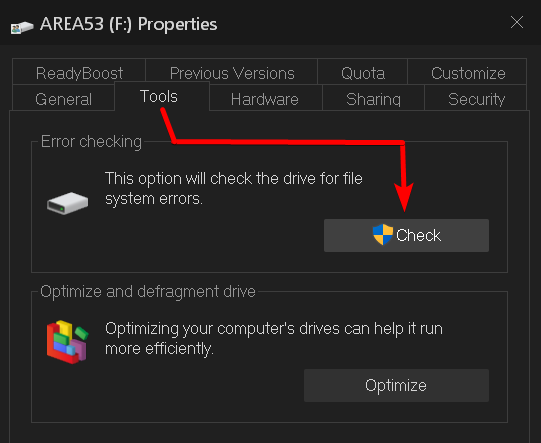
If your PC is on Windows, plug your micro SD card to your PC, either by using an adapter, or with a USB cable (using Hekate UMS on your Switch). Then, right click the SD card in your File Explorer and go to Properties. Inside the properties window, go to the Tools tab and press the Check button (see screenshot below). This will scan the SD card for corruption issues and repair them.
If your PC is running Linux or macOS, follow this guide.
After doing so, you may try to boot to TKMM-NX again and see if the boot issues are fixed. If not, try reinstalling TKMM-NX using a different file transfer method, like FTP, or Hekate UMS (with the best quality cable you can find), or directly install it from the Homebrew App Store.
Method #2: Formatting the SD card
If nothing works at all, you may attempt the steps described below.
-
- connect the Switch to your PC with a USB cable, then in Hekate, go to
Tools>USB Tools>SD Card
- connect the Switch to your PC with a USB cable, then in Hekate, go to
-
- extract
tkmm-nx.zipto the SD card's root again (overwrite all files), eject the SD card safely, and try booting to TKMM-NX again
- extract
-
- if that still didn't work, return to Hekate UMS and copy all files from the SD card to a folder somewhere on your PC
-
- after all transfers are completed, right click the SD card on your PC and select "Eject"
-
- go to
Tools>Partition SD Cardin Hekate
- go to
-
- leave everything on the default settings, and click "Next Step"
Important
THE STEPS DESCRIBED BELOW WILL ERASE THE SD CARD, IF YOU HAD A SPECIFIC PARTITION LAYOUT FOR EMUMMC OR LINUX/ANDROID THEN USE AN EXTERNAL TOOL TO WIPE THE FAT32 PARTITION ONLY
WE DO NOT TAKE RESPONSIBILITY FOR ANY LOSS OF DATA, PROCEED AT YOUR OWN RISK.
-
- validate when it asks you to confirm if you really want to erase everything
-
- go back to the USB tool in Hekate
-
- copy all files back from your PC to the SD card
-
- go to
More Configsin Hekate and try to boot to TKMM-NX again
- go to
SD Card Compatibility
If none of the methods provided helped fix the boot errors, it is highly likely that your SD card is simply incompatible (check the Switchroot SD card guide). You may need to acquire a new SD card to get TKMM-NX working on your Switch, if so, the Samsung Pro ones are the ones we most recommend.
Alternatively, you may use the Desktop version of TKMM on your PC, and export the mods to your SD card.