TKMM on the Switch
Prerequisites
- Tears of the Kingdom base game and update (1.1.0 or later) either installed on your SD card or dumped with nxdumptool (as an XCI or NSP file).
- Lockpick_RCM (For dumping your keys)
- Hekate (Download the latest
hekate_ctcaer_<version>.ziprelease of Hekate)
Preparation
1. SD Card Setup
To install TKMM-NX,
- Download
tkmm-nx.zipand extract it to the root of the SD card (or install it later from the Homebrew app store). - Install Lockpick by copying
Lockpick_RCM.binto the folder/bootloader/payloadson your SD card and overwrite it if already existing (if you already had Lockpick, you still need to download the latest version and replace it). - Extract
hekate_ctcaer_(version).zipto the root of the SD card (replace existing files if prompted).
2. Dumping Keys
To dump the Switch's keys, open the Payloads section in Hekate and launch Lockpick_RCM.bin, then select either Dump from SysNAND if you play the game on SysMMC, or Dump from EmuNAND if you play the game on EmuMMC. (Use the power button to select and volume up/down to navigate.)
If you already dumped your keys prior to following this tutorial, you still need to redump them using the latest version of Lockpick.
If your Switch firmware receives a major update in the future (e.g. going from 21.x.x to 22.x.x), you will also need to redownload the newest version of Lockpick and redump the keys again.
3. Ensure Tears of the Kingdom is Accessible
TKMM-NX needs access to the base game and update data (version 1.1.0 or later) in order to function, as well as the Switch's keys to decrypt them.
To determine where the base game and update data are installed, refer to Data Management > Manage Software > Tears of the Kingdom in the Switch's settings.
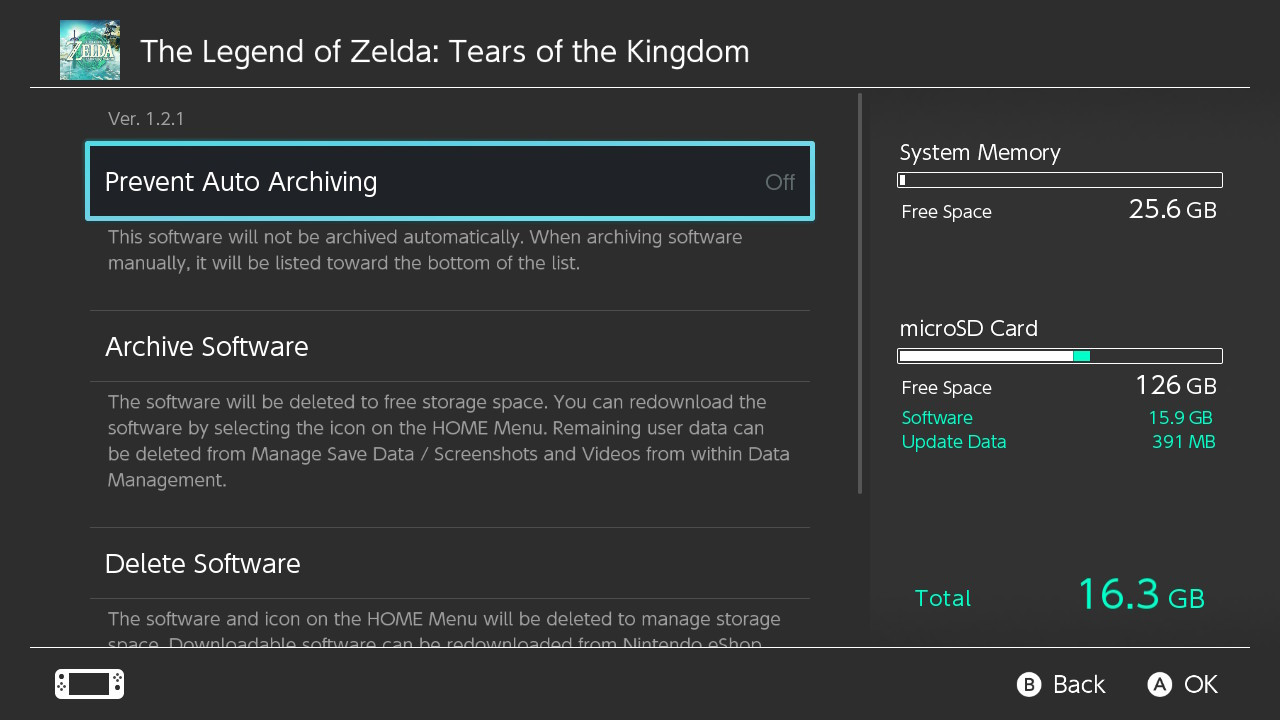
If both Software and Update Data are listed under microSD Card, you do not need to dump or move your game to the SD card.
Otherwise, only parts not installed on the microSD Card require either one of the two solutions below:
The first method (recommended if you have a digital copy of the game), is to transfer the game from system memory to the SD card. Refer to this tutorial for more information. This cannot be done for the base game if your copy is a physical cartridge.
The second method (mandatory if your copy of the game is a physical cartridge) is to dump the game to the SD card. Refer to Dumping Tears of the Kingdom for more information. This method is inefficient for digital copies of the game, because you will end up with the game stored both on system memory and the SD card.
Installation
Installing from the Homebrew App Store
If TKMM-NX was not installed in the preparation section by extracting it to the SD card, it can be installed from the Homebrew App Store (under the Advanced category).
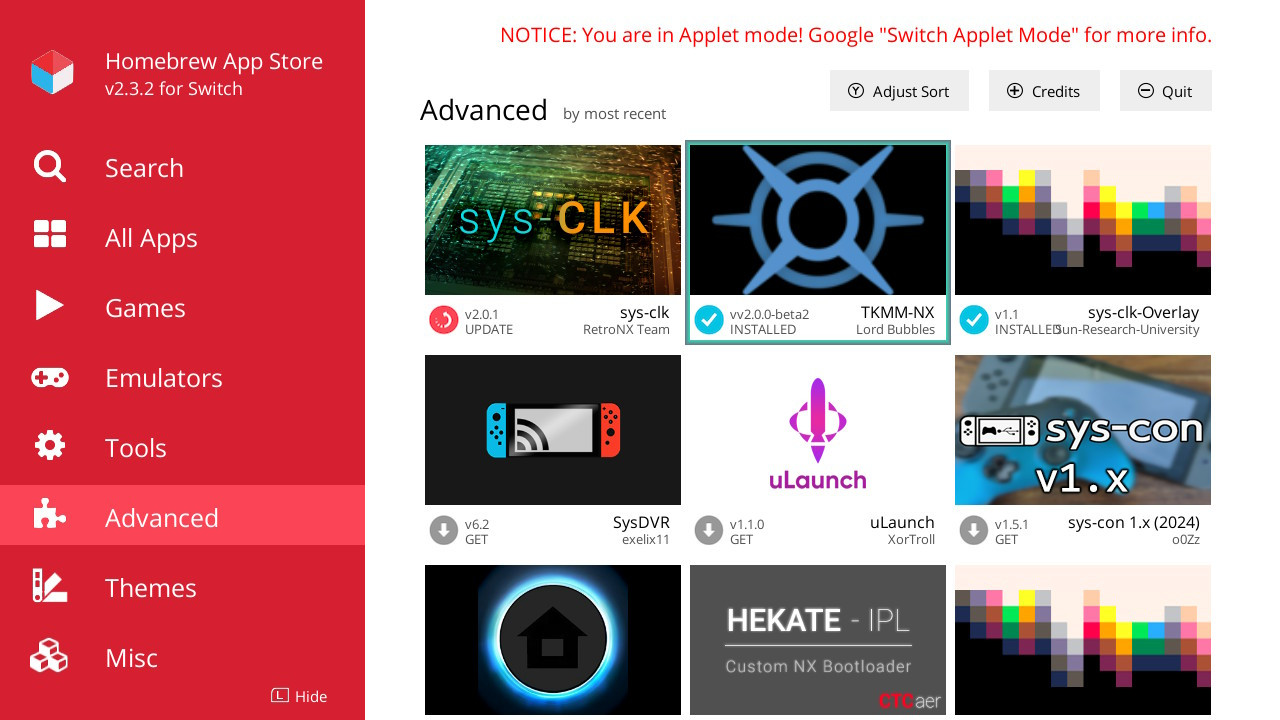
Post-Installation Setup
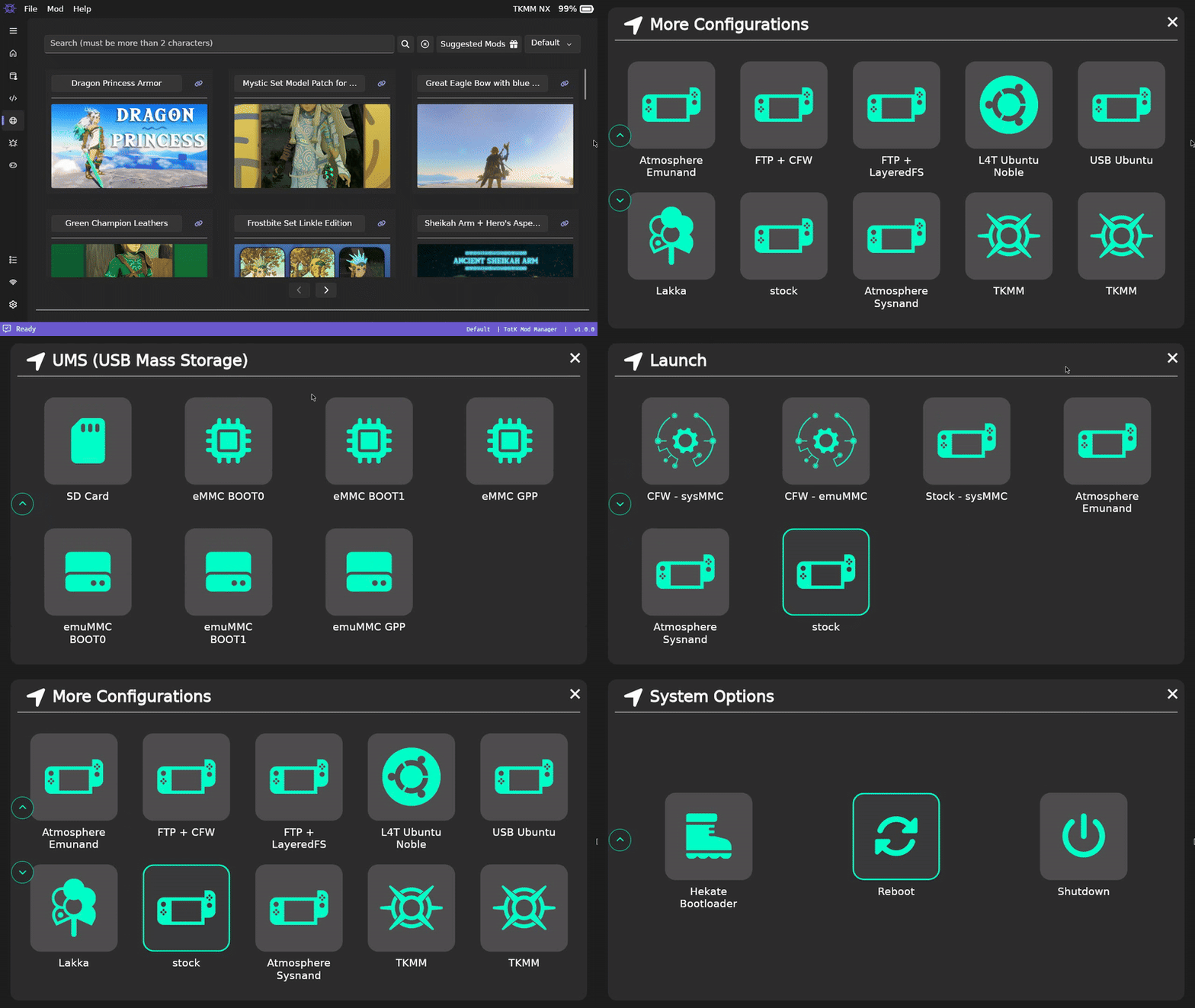
If TKMM-NX is installed correctly, a boot entry for TKMM will appear under More Configs in Hekate.
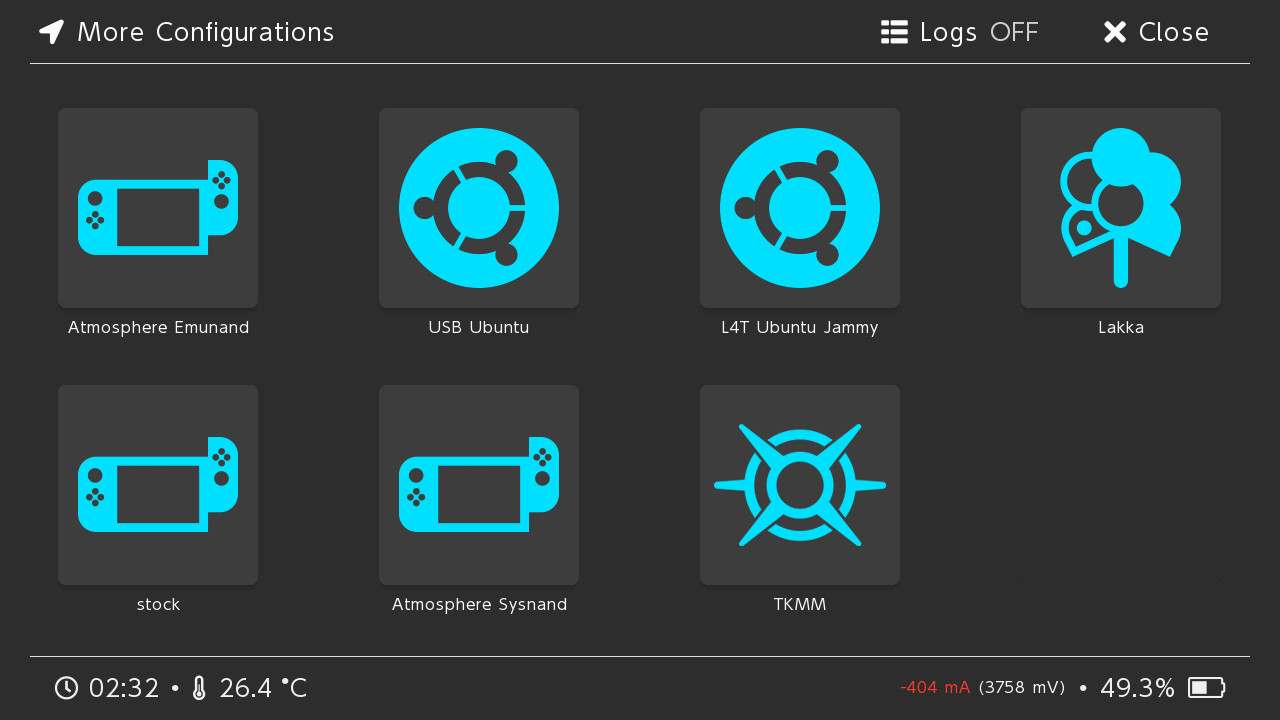
The first time TKMM-NX is opened, the setup wizard will appear. If the preparation section was done correctly, no additional setup will be required.
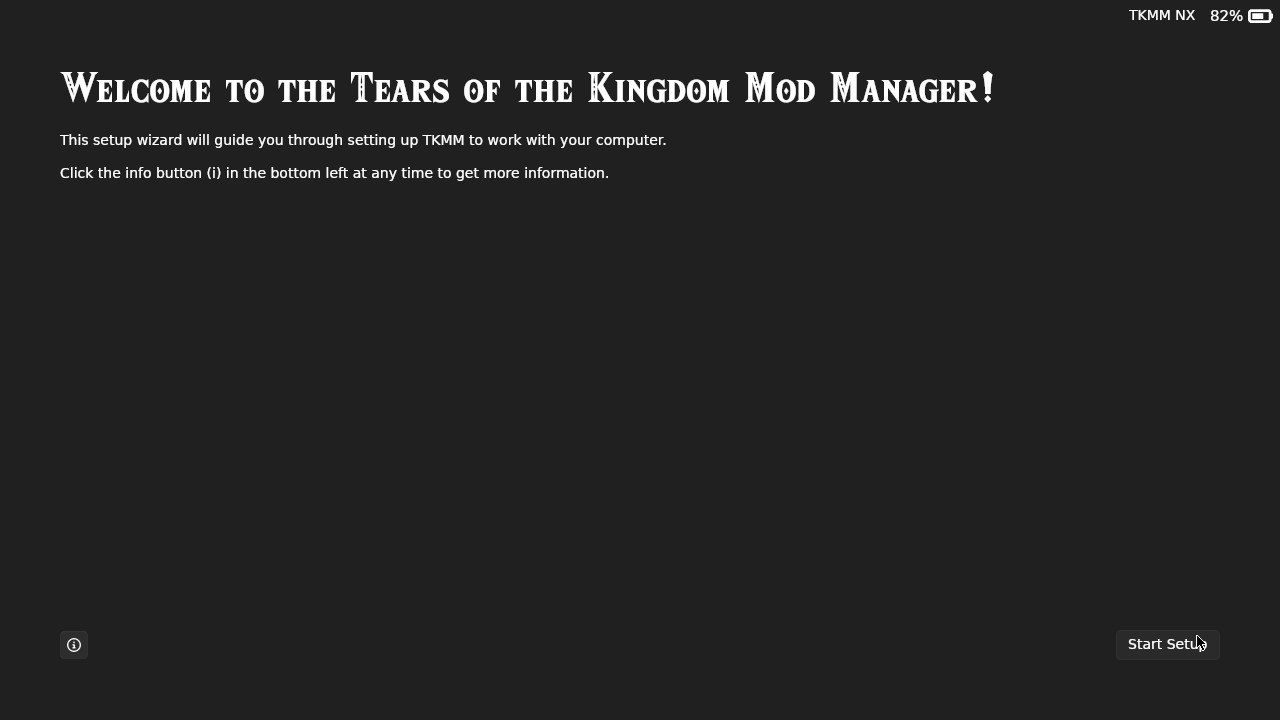
If the setup wizard cannot find the keys or the game/update, review the steps in the preparation section.
If you get kernel errors, or any L4T errors preventing you to boot into TKMM-NX (wrong image format for bootm command, or failed to load kernel for example), refer to the Troubleshooting page.
Network Setup (Optional)
To enable the GameBanana mod browser and other network features, TKMM-NX must be connected to the internet.
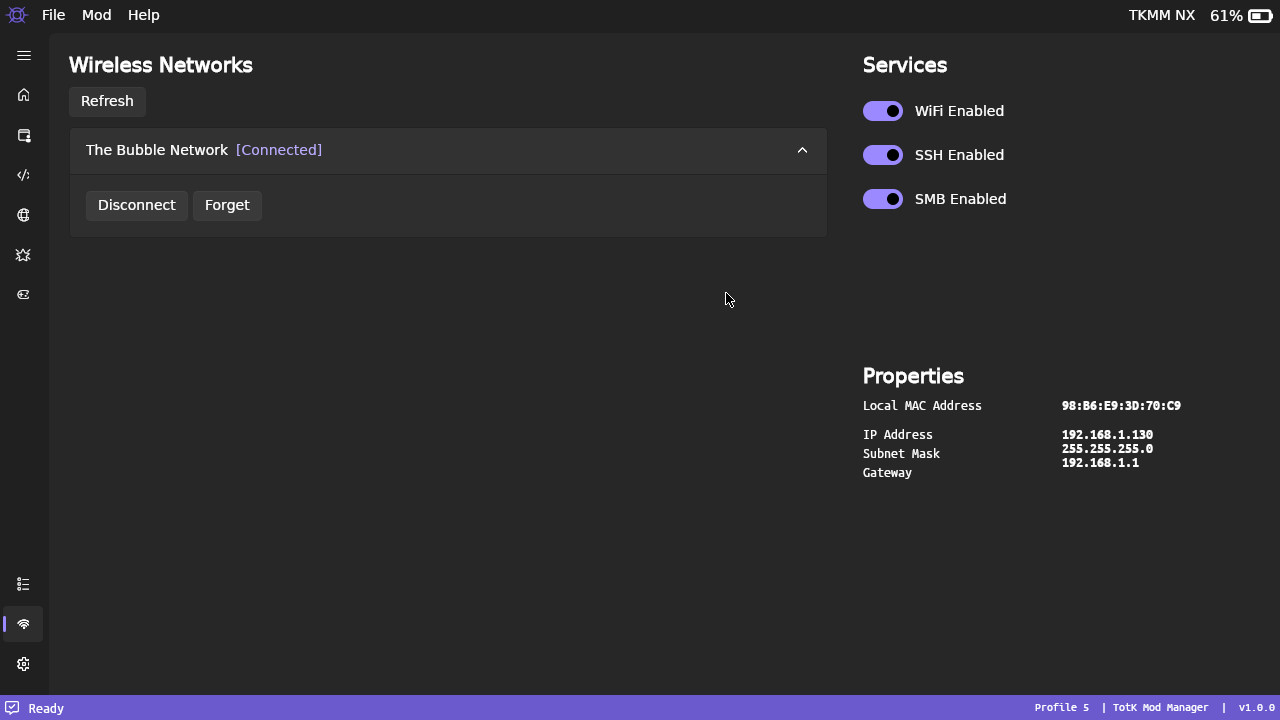
To connect to a wireless network, navigate to the network page (Wi-Fi icon on the bottom left) and select Connect on a wireless network. Enter the password if needed, and wait for the status to change to Connected.
Note
If network features aren't working, ensure that WiFi Enabled is toggled ON under Services.
Connecting to Wi-Fi while in TKMM-NX is safe and will not result in a console ban. Since this is a sandbox environment completely isolated from HOS, there is no Nintendo telemetry.
Using TKMM-NX
Installing Mods
Mods can be installed from either the built-in GameBanana browser or by selecting files on your SD card.
Refer to the Using Mods page for more information on how to install mods with TKMM.
Important
On Switch firmware 20.0.0 and higher, enabling the TotK Optimizer is mandatory, otherwise the game will crash at launch.
After making any changes to the mod list, you must click Apply on the home page for changes to take effect.
Leaving TKMM-NX
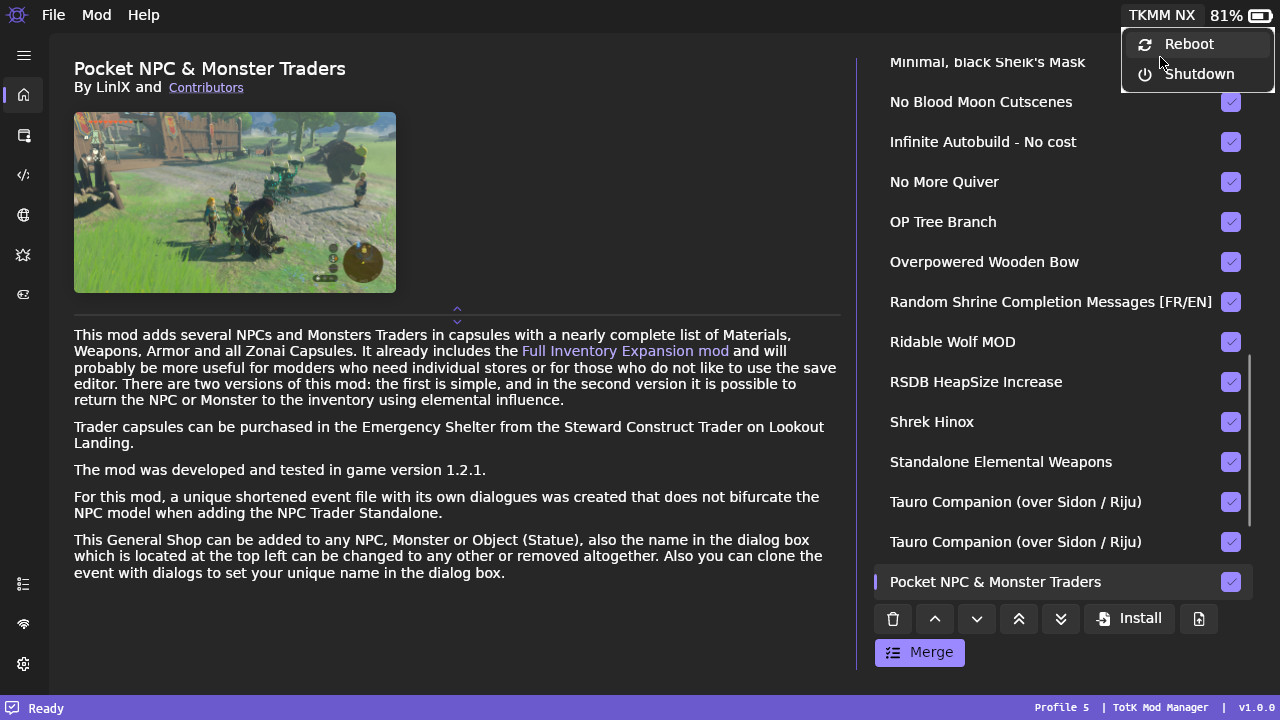
To reboot to Hekate, select Reboot from the TKMM-NX menu at the top right.
For convenience, it is also possible to press the Home button to show the Reboot2Config menu allowing you to select which boot entry in Hekate you would like to reboot to. Use the D-Pad to navigate between available options, or simply swipe up and down to switch pages.
Additional Information
- Pressing the
Capture buttonwill create a screenshot in thetkmm/screenshotsfolder on the SD card. - Providing logs is required for requesting assistance, those are located in
tkmm/Logson the SD card.
For more detailed help on how to use TKMM, please refer to the documentation, or join the TKMM Discord server.
Integrated TotK Optimizer / Ultracam
MaxLastBreath, the developer of the TotK Optimizer (Ultracam), has allowed the TKMM Team to use his mod and directly integrate it into TKMM.
It can be enabled from the TotK Optimizer page on the left (star icon). Keep in mind, the Switch may not be able to boot the game if you select any resolution higher than 1080p and 60 FPS.
Note
You do not need to install Ultracam separately, as it is already integrated into the TotK Optimizer page. For users with access to the beta versions, install the TKCL file provided on the official NX Optimizer Discord Server. (See Using Mods for installing TKCL files.)
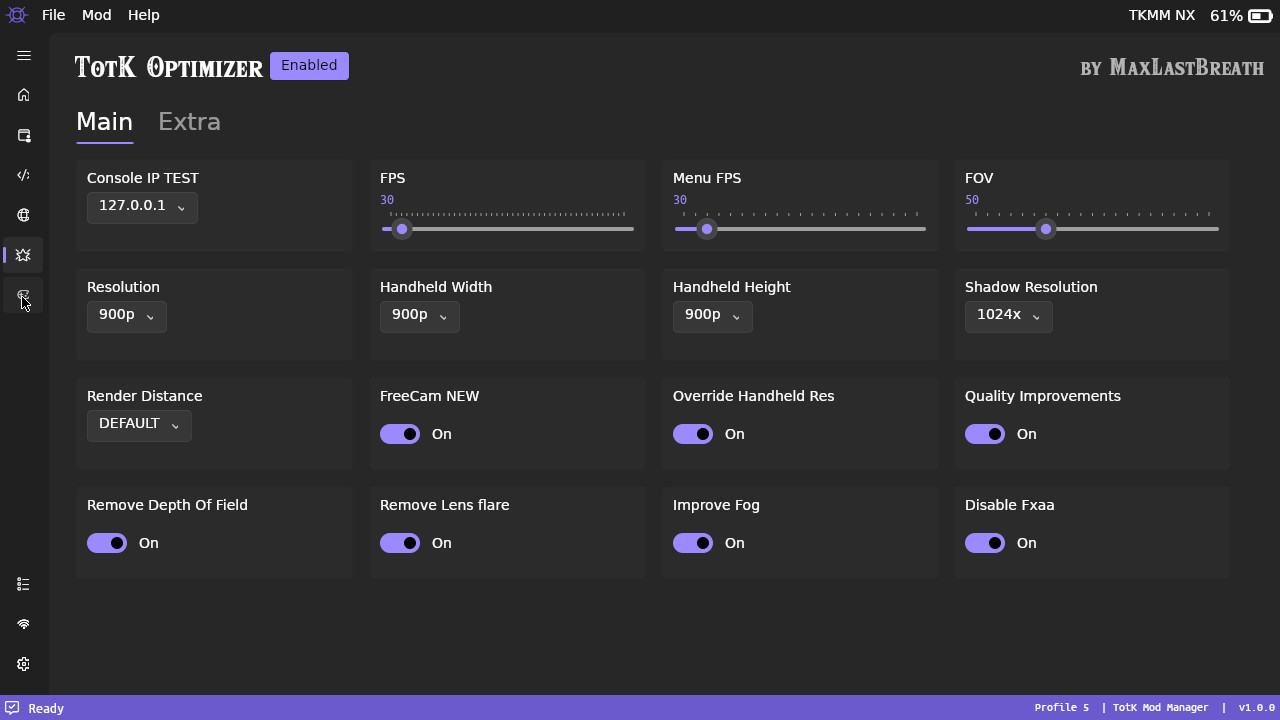
For more information, visit the official website of the optimizer and get a better idea of what this mod is and how best to configure it for your Switch.
All assistance requests related to the optimizer should be directed to the Discord server for the optimizer.
This guide is based on the original Game Banana tutorial by lordbubbles, consider supporting him on KoFi.